
Forms
XMLUI enables to create forms without the hassle of managing, editing, validating, and saving the information you provide in the UI.
This example demonstrates the core pattern: a Form with input components placed directly inside it.
<App>
  <Form data="{{ name: 'Joe', age: 43 }}">
    <FlowLayout>
      <H3>Customer information</H3>
      <TextBox bindTo="name" label="Customer name" />
      <NumberBox
        bindTo="age"
        label="Age"
        integersOnly="true"
        zeroOrPositive="true"
      />
    </FlowLayout>
  </Form>
</App><App>
<Form data="{{ name: 'Joe', age: 43 }}">
<FlowLayout>
<H3>Customer information</H3>
<TextBox bindTo="name" label="Customer name" />
<NumberBox
bindTo="age"
label="Age"
integersOnly="true"
zeroOrPositive="true"
/>
</FlowLayout>
</Form>
</App>Formencapsulates the management of form UI elements and data handling- The
dataproperty holds the form's data - Input components such as
TextBox,NumberBox,Checkbox,Select, etc. bind directly to form data usingbindTobindTospecifies the property name within thedatato bind to- validation and other properties are set directly on the input component
When a component is instantiated inside a Form, the form creates a runtime context ($data) that is automatically available to all nested components — including components declared in separate files — so any input component's bindTo can target form fields without passing the form data via props.
Form Layouts
You can use any of XMLUI's layout mechanisms with a Form. Here is a single-column format using FlowLayout.
<App>
  <Form data="{{
      firstname: 'Jake',
      lastname: 'Hard',
      jobTitle: 'janitor',
      experience: 'broom'
    }}">
    <FlowLayout>
      <TextBox label="Firstname" bindTo="firstname" />
      <TextBox label="Lastname" bindTo="lastname" />
      <TextBox label="Job Title" bindTo="jobTitle" />
      <TextBox label="Experience" bindTo="experience" />
    </FlowLayout>
  </Form>
</App><App>
<Form data="{{
firstname: 'Jake',
lastname: 'Hard',
jobTitle: 'janitor',
experience: 'broom'
}}">
<FlowLayout>
<TextBox label="Firstname" bindTo="firstname" />
<TextBox label="Lastname" bindTo="lastname" />
<TextBox label="Job Title" bindTo="jobTitle" />
<TextBox label="Experience" bindTo="experience" />
</FlowLayout>
</Form>
</App>Set each item's width to 50% to create a two-column layout.
<App>
  <Form
    data="{{
      firstname: 'Jake',
      lastname: 'Hard',
      jobTitle: 'janitor',
      experience: 'broom'
    }}">
    <FlowLayout>
      <TextBox label="Firstname" bindTo="firstname" width="50%" />
      <TextBox label="Lastname" bindTo="lastname" width="50%" />
      <TextBox label="Job Title" bindTo="jobTitle" width="50%" />
      <TextBox label="Experience" bindTo="experience" width="50%" />
    </FlowLayout>
  </Form>
</App><App>
<Form
data="{{
firstname: 'Jake',
lastname: 'Hard',
jobTitle: 'janitor',
experience: 'broom'
}}">
<FlowLayout>
<TextBox label="Firstname" bindTo="firstname" width="50%" />
<TextBox label="Lastname" bindTo="lastname" width="50%" />
<TextBox label="Job Title" bindTo="jobTitle" width="50%" />
<TextBox label="Experience" bindTo="experience" width="50%" />
</FlowLayout>
</Form>
</App>Use star sizing to allocate widths flexibly. Here Firstname and Lastname equally share the space remaining after the 100-px-wide Title.
<App>
  <Form
    data="{{
      title: 'Mr.',
      firstname: 'Jake',
      lastname: 'Hard',
      jobTitle: 'janitor',
      experience: 'broom'
    }}"
    onSubmit="(toSave) => toast.success(JSON.stringify(toSave))">
    <FlowLayout>
      <HStack>
        <TextBox label="Title" bindTo="title" width="100px" />
        <TextBox label="Firstname" bindTo="firstname" width="*" />
        <TextBox label="Lastname" bindTo="lastname" width="*" />
      </HStack>
      <TextBox label="Job Title" bindTo="jobTitle" width="50%" />
      <TextBox label="Experience" bindTo="experience" width="50%" />
    </FlowLayout>
  </Form>
</App><App>
<Form
data="{{
title: 'Mr.',
firstname: 'Jake',
lastname: 'Hard',
jobTitle: 'janitor',
experience: 'broom'
}}"
onSubmit="(toSave) => toast.success(JSON.stringify(toSave))">
<FlowLayout>
<HStack>
<TextBox label="Title" bindTo="title" width="100px" />
<TextBox label="Firstname" bindTo="firstname" width="*" />
<TextBox label="Lastname" bindTo="lastname" width="*" />
</HStack>
<TextBox label="Job Title" bindTo="jobTitle" width="50%" />
<TextBox label="Experience" bindTo="experience" width="50%" />
</FlowLayout>
</Form>
</App>Input Components
Use XMLUI input components directly inside a Form. Each component has a bindTo property that connects it to a field in the form's data.
Checkbox
<App>
  <Form data="{{ option1: true, option2: false, option3: true }}"
    onSubmit="(toSave) => toast.success(JSON.stringify(toSave))">
    <Checkbox bindTo="option1" label="Option #1" labelPosition="end" />
    <Checkbox bindTo="option2" label="Option #2" labelPosition="end" />
    <Checkbox bindTo="option3" label="Option #3" labelPosition="end" />
  </Form>
</App><App>
<Form data="{{ option1: true, option2: false, option3: true }}"
onSubmit="(toSave) => toast.success(JSON.stringify(toSave))">
<Checkbox bindTo="option1" label="Option #1" labelPosition="end" />
<Checkbox bindTo="option2" label="Option #2" labelPosition="end" />
<Checkbox bindTo="option3" label="Option #3" labelPosition="end" />
</Form>
</App>DatePicker
<App>
  <Form
    data="{{ birthDate: '2021-04-08' }}"
    onSubmit="(toSave) => toast.success(JSON.stringify(toSave))">
    <DatePicker bindTo="birthDate" label="Birthdate" />
  </Form>
</App><App>
<Form
data="{{ birthDate: '2021-04-08' }}"
onSubmit="(toSave) => toast.success(JSON.stringify(toSave))">
<DatePicker bindTo="birthDate" label="Birthdate" />
</Form>
</App>FileInput
Use FileInput to select one or multiple files.
<App>
  <Form
    data="{{ articles: null }}"
    onSubmit="(toSave) => toast.success(JSON.stringify(toSave))">
    <FileInput bindTo="articles" label="Articles file" />
  </Form>
</App><App>
<Form
data="{{ articles: null }}"
onSubmit="(toSave) => toast.success(JSON.stringify(toSave))">
<FileInput bindTo="articles" label="Articles file" />
</Form>
</App>NumberBox (integers)
Use integersOnly to restrict input to whole numbers.
<App>
  <Form
    data="{{ age: 30 }}"
    onSubmit="(toSave) => toast.success(JSON.stringify(toSave))">
    <NumberBox bindTo="age" label="Age" integersOnly="true" />
  </Form>
</App><App>
<Form
data="{{ age: 30 }}"
onSubmit="(toSave) => toast.success(JSON.stringify(toSave))">
<NumberBox bindTo="age" label="Age" integersOnly="true" />
</Form>
</App>NumberBox (floating-point)
<App>
  <Form
    data="{{ distance: 192.5 }}"
    onSubmit="(toSave) => toast.success(JSON.stringify(toSave))">
    <NumberBox bindTo="distance" label="Distance in miles" />
  </Form>
</App><App>
<Form
data="{{ distance: 192.5 }}"
onSubmit="(toSave) => toast.success(JSON.stringify(toSave))">
<NumberBox bindTo="distance" label="Distance in miles" />
</Form>
</App>RadioGroup
<App>
  <Form
    data="{{ title: 'Mr.' }}"
    onSubmit="(toSave) => toast.success(JSON.stringify(toSave))">
    <RadioGroup bindTo="title" label="Title">
      <Option label="Mr." value="Mr." />
      <Option label="Mrs." value="Mrs." />
      <Option label="Ms." value="Ms." />
      <Option label="Dr." value="Dr." />
    </RadioGroup>
  </Form>
</App><App>
<Form
data="{{ title: 'Mr.' }}"
onSubmit="(toSave) => toast.success(JSON.stringify(toSave))">
<RadioGroup bindTo="title" label="Title">
<Option label="Mr." value="Mr." />
<Option label="Mrs." value="Mrs." />
<Option label="Ms." value="Ms." />
<Option label="Dr." value="Dr." />
</RadioGroup>
</Form>
</App>Select
<App>
  <Form
    data="{{ size: 'xs' }}"
    onSubmit="(toSave) => toast.success(JSON.stringify(toSave))">
    <Select bindTo="size" label="Box size">
      <Option label="Extra small" value="xs" />
      <Option label="Small" value="sm" />
      <Option label="Medium" value="md" />
      <Option label="Large" value="lg" />
    </Select>
  </Form>
</App><App>
<Form
data="{{ size: 'xs' }}"
onSubmit="(toSave) => toast.success(JSON.stringify(toSave))">
<Select bindTo="size" label="Box size">
<Option label="Extra small" value="xs" />
<Option label="Small" value="sm" />
<Option label="Medium" value="md" />
<Option label="Large" value="lg" />
</Select>
</Form>
</App>Switch
<App>
  <Form
    data="{{ showBorder: true, showText: false, hideShadow: true }}"
    onSubmit="(toSave) => toast.success(JSON.stringify(toSave))">
    <Switch bindTo="showBorder" label="Show border" labelPosition="right" />
    <Switch bindTo="showText" label="Show text" labelPosition="right" />
    <Switch bindTo="hideShadow" label="Hide shadow" labelPosition="right" />
  </Form>
</App><App>
<Form
data="{{ showBorder: true, showText: false, hideShadow: true }}"
onSubmit="(toSave) => toast.success(JSON.stringify(toSave))">
<Switch bindTo="showBorder" label="Show border" labelPosition="right" />
<Switch bindTo="showText" label="Show text" labelPosition="right" />
<Switch bindTo="hideShadow" label="Hide shadow" labelPosition="right" />
</Form>
</App>TextBox
<App>
  <Form
    data="{{ name: 'Joe' }}"
    onSubmit="(toSave) => toast.success(JSON.stringify(toSave))">
    <TextBox bindTo="name" label="Name" />
  </Form>
</App><App>
<Form
data="{{ name: 'Joe' }}"
onSubmit="(toSave) => toast.success(JSON.stringify(toSave))">
<TextBox bindTo="name" label="Name" />
</Form>
</App>TextArea
<App>
  <Form
    data="{{ description: 'This is a description' }}"
    onSubmit="(toSave) => toast.success(JSON.stringify(toSave))">
    <TextArea bindTo="description" label="Description" />
  </Form>
</App><App>
<Form
data="{{ description: 'This is a description' }}"
onSubmit="(toSave) => toast.success(JSON.stringify(toSave))">
<TextArea bindTo="description" label="Description" />
</Form>
</App>Provide data
You can define a Forms data structure and initial values directly.
<Form data="{{ name: 'Joe', age: 43 }}" />Or via an API endpoint.
<Form data="/path/to/resource" />Use the bindTo property to access fields in the structure.
<Form data="{{ name: 'Joe' }}">
  <TextBox bindTo="name" />
</Form>
Refer to data
The $data variable holds all the form's data. You can use values in $data to control input component properties. Here the Switchs value sets the enabled property of a TextBox.
<App>
  <Form data="{{ isEnabled: true, name: 'Joe' }}">
    <Switch label="Enable name" bindTo="isEnabled" />
    <TextBox enabled="{$data.isEnabled}" label="Name" bindTo="name" />
  </Form>
</App><App>
<Form data="{{ isEnabled: true, name: 'Joe' }}">
<Switch label="Enable name" bindTo="isEnabled" />
<TextBox enabled="{$data.isEnabled}" label="Name" bindTo="name" />
</Form>
</App>Other components in the form can reference the form's data too. Here the Text updates reactively when input values change.
<App>
  <Form data="{{ firstname: 'John', lastname: 'Doe' }}">
    <TextBox label="Firstname" bindTo="firstname" />
    <TextBox label="Lastname" bindTo="lastname" />
    <Text>Full name: {$data.firstname} {$data.lastname}</Text>
  </Form>
</App><App>
<Form data="{{ firstname: 'John', lastname: 'Doe' }}">
<TextBox label="Firstname" bindTo="firstname" />
<TextBox label="Lastname" bindTo="lastname" />
<Text>Full name: {$data.firstname} {$data.lastname}</Text>
</Form>
</App>You can drill into $data to reference nested fields.
<App>
  <Form
    data="{{
      name: 'John smith',
      address: { street: '96th Ave N', city: 'Seattle', zip: '98005' }
    }}"
    onSubmit="(toSave) => toast.success(JSON.stringify(toSave))">
    <TextBox bindTo="name" label="Name" />
    <TextBox bindTo="address.street" label="Street" />
  </Form>
</App><App>
<Form
data="{{
name: 'John smith',
address: { street: '96th Ave N', city: 'Seattle', zip: '98005' }
}}"
onSubmit="(toSave) => toast.success(JSON.stringify(toSave))">
<TextBox bindTo="name" label="Name" />
<TextBox bindTo="address.street" label="Street" />
</Form>
</App>Validate data
The Form handles client-side validation, reporting issues interactively. Server-side validation happens when the form data is sent to the server. The Form handles the server's response and displays it in a summary or below input fields.
Validation properties are set directly on the input component.
minLength
<App>
  <Form data="{{ name: 'Billy Bob' }}">
    <TextBox bindTo="name" minLength="10" label="minLength" />
  </Form>
</App><App>
<Form data="{{ name: 'Billy Bob' }}">
<TextBox bindTo="name" minLength="10" label="minLength" />
</Form>
</App>Try submitting with fewer than 10 characters.
maxLength
<App>
  <Form data="{{ name: 'Billy Bob' }}">
    <TextBox bindTo="name" maxLength="11" label="maxLength" />
  </Form>
</App><App>
<Form data="{{ name: 'Billy Bob' }}">
<TextBox bindTo="name" maxLength="11" label="maxLength" />
</Form>
</App>Try entering more than 11 characters.
minValue
<App>
  <Form data="{{ age: 30 }}">
    <NumberBox bindTo="age" minValue="32" label="minValue" />
  </Form>
</App><App>
<Form data="{{ age: 30 }}">
<NumberBox bindTo="age" minValue="32" label="minValue" />
</Form>
</App>Try entering a number smaller than 32.
maxValue
<App>
  <Form data="{{ age: 30 }}" >
    <NumberBox bindTo="age" maxValue="29" label="maxValue" />
  </Form>
</App><App>
<Form data="{{ age: 30 }}" >
<NumberBox bindTo="age" maxValue="29" label="maxValue" />
</Form>
</App>Try entering a number larger than 29.
pattern
Evaluate predefined regex patterns: "email", "url", or "phone".
See the pattern property of TextBox.
regex
Evaluate a custom regex pattern.
<App>
  <Form data="{{ password: 'hello' }}">
    <!-- Only all uppercase letters are accepted -->
    <TextBox bindTo="password" regex="/^[A-Z]+$/" label="regex" />
  </Form>
</App><App>
<Form data="{{ password: 'hello' }}">
<!-- Only all uppercase letters are accepted -->
<TextBox bindTo="password" regex="/^[A-Z]+$/" label="regex" />
</Form>
</App>Compound validation
You can use multiple validations.
<App>
  <Form data="{{ site: 'http://www.example.com' }}">
    <TextBox bindTo="site" minLength="10" maxLength="30"
      pattern="url" label="Multiple Validations" />
  </Form>
</App><App>
<Form data="{{ site: 'http://www.example.com' }}">
<TextBox bindTo="site" minLength="10" maxLength="30"
pattern="url" label="Multiple Validations" />
</Form>
</App>Validation-specific severity
By default, all validations have a severity level of "error". You can set whether a validation should have a level of "warning" or "error".
<App>
  <Form data="{{ mobile: '+13456123456', website: 'http://www.blogsite.com' }}" >
    <TextBox
      bindTo="mobile"
      pattern="phone"
      patternInvalidSeverity="warning"
      label="mobilePattern" />
    <TextBox
      bindTo="website"
      pattern="url"
      patternInvalidSeverity="error"
      label="websitePattern" />
  </Form>
</App><App>
<Form data="{{ mobile: '+13456123456', website: 'http://www.blogsite.com' }}" >
<TextBox
bindTo="mobile"
pattern="phone"
patternInvalidSeverity="warning"
label="mobilePattern" />
<TextBox
bindTo="website"
pattern="url"
patternInvalidSeverity="error"
label="websitePattern" />
</Form>
</App>Validation-specific messages
Predefined validations have built-in messages that you can change.
<App>
  <Form data="{{ age: 20 }}" >
    <NumberBox
      bindTo="age"
      minValue="21"
      rangeInvalidMessage="The given age is too low!"
      label="Invalid Message" />
  </Form>
</App><App>
<Form data="{{ age: 20 }}" >
<NumberBox
bindTo="age"
minValue="21"
rangeInvalidMessage="The given age is too low!"
label="Invalid Message" />
</Form>
</App>Server-side validation
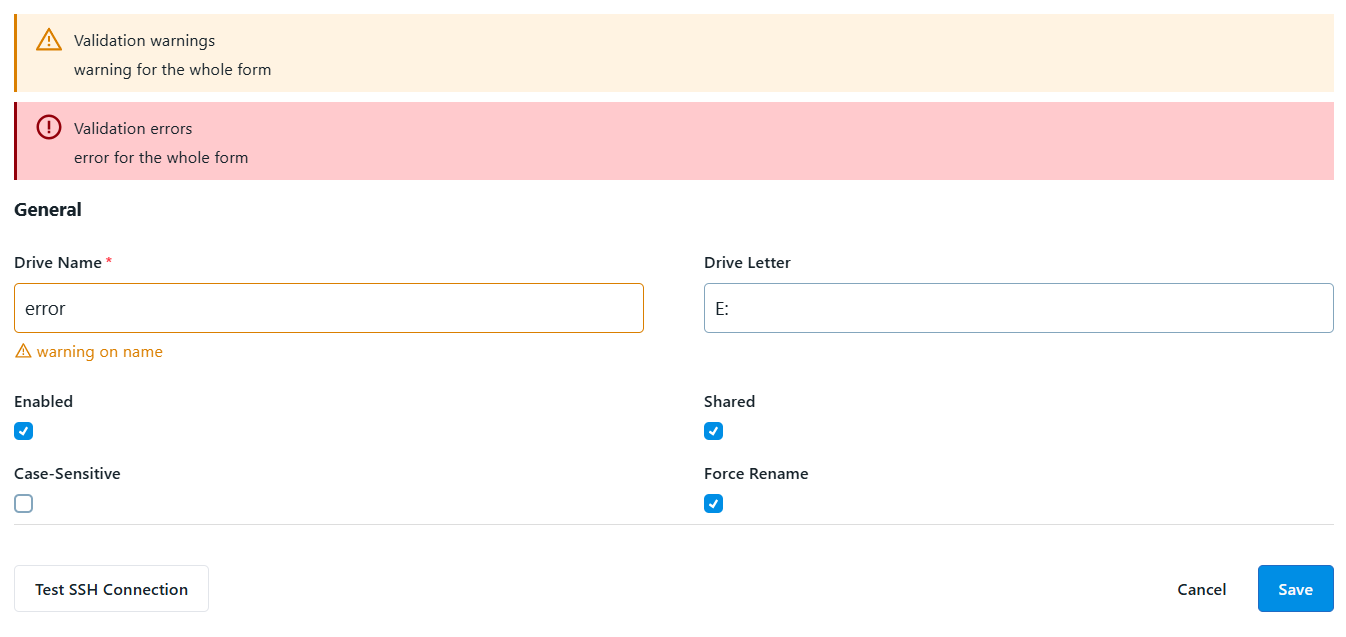
The Form component can receive and display a server-side validation response. Field related issues are shown just like client-side validation errors, removed when a field is edited. Non-field related issues are displayed in a validation summary view.
Submit data
By default the Form component provides a submit button to save the modified data.
<App>
  <Form onSubmit="toast('Saved!')" />
</App><App>
<Form onSubmit="toast('Saved!')" />
</App>The onSubmit accepts either a block of code or function. When you use a function it receives data in a parameter; in this example it's called toSave but you can use any name. The function can be defined inline, in a code-behind file, or in index.html attached to the global window variable. See the Code chapter for details.
<App>
  <Form
    data="{{ name: 'Joe', age: 43 }}"
    onSubmit="(d) => toast(JSON.stringify(d))"
  >
    <TextBox label="name" bindTo="name" />
    <NumberBox label="age" bindTo="age" integersOnly="true" />
  </Form>
</App><App>
<Form
data="{{ name: 'Joe', age: 43 }}"
onSubmit="(d) => toast(JSON.stringify(d))"
>
<TextBox label="name" bindTo="name" />
<NumberBox label="age" bindTo="age" integersOnly="true" />
</Form>
</App>To submit via an APICall, use the event helper tag to bridge between the form and the API. The Forms data attribute maps to the APICall's $param context variable. A Toast popup reports success or error.
<App>
  <Form data="{{ name: 'Joe', age: 43 }}">
    <event name="submit">
      <APICall
        url="/api/contacts"
        method="POST"
        body="{$param}" />
    </event>
    <TextBox bindTo="name" label="name" />
    <NumberBox bindTo="age" label="age" integersOnly="true" />
  </Form>
</App>
Form in ModalDialog
ModalDialog supports Form as a first-class citizen component. When a Form nests directly in a ModalDialog, the dialog's button row is replaced with the form's own button row. When form submission is successful, the dialog closes.
Custom inputs with FormItem
For cases where no built-in input component fits your needs, use FormItem to wrap a custom input. FormItem exposes $value (the current value) and $setValue (a function to update it) to its children.
<App>
  <Form
    data="{{ userAvailable: false }}"
    onSubmit="(toSave) => toast.success(JSON.stringify(toSave))">
    <FormItem bindTo="userAvailable">
      <HStack>
        <Button
          label="Toggle"
          backgroundColor="{$value === false ? 'red' : 'green'}"
          onClick="$setValue(!$value)"
        />
      </HStack>
    </FormItem>
  </Form>
</App><App>
<Form
data="{{ userAvailable: false }}"
onSubmit="(toSave) => toast.success(JSON.stringify(toSave))">
<FormItem bindTo="userAvailable">
<HStack>
<Button
label="Toggle"
backgroundColor="{$value === false ? 'red' : 'green'}"
onClick="$setValue(!$value)"
/>
</HStack>
</FormItem>
</Form>
</App>$value represents the current value of the component. $setValue changes the value.
FormItemwith atypeproperty (e.g.type="text",type="select") is still supported for backward compatibility, but using the corresponding input component directly is the preferred approach.